I am surprised to find that even by 2012 Apple has yet to include an object type for UUID. Nor do they provide an easy way to generate a UUID. Java does both.
The blog post Creating a GUID or UUID in Objective-C by Don McCaughey provides source code for a nice method to wrap Apple's clumsy UUID feature in Core Foundation. Unfortunately his 2010 code is not working for me Xcode 4.4.1, apparently because of ARC.
Error:
Cast of C pointer type 'CFStringRef' (aka 'const struct _CFString *') to Objective-C pointer type 'NSString *' requires a bridged cast
Two fix-its offered. I chose this one:
Use CFBridgingRelease call to transfer ownership of a +1 'CFStringRef' (aka 'const struct _CFString *' into ARC
And I deleted his call to autorelease.
Here is my revision to Mr. McCaughey’s code. My revision seems to be working. But is memory managed correctly? I am still too new to Objective-C and C to grasp the nuance of bridging OOP and POC (Plain Old C). Please post corrections or criticism.
//=================
// Return a new UUID string. Built for ARC in iOS 4 and later.
- (NSString *)generateUuidString
{
// create a new UUID which you own
CFUUIDRef uuid = CFUUIDCreate(kCFAllocatorDefault);
// create a new CFStringRef.
NSString *uuidString = (NSString *)CFBridgingRelease(CFUUIDCreateString(kCFAllocatorDefault, uuid));
// release the UUID
CFRelease(uuid);
return uuidString;
}
//=================
StackOverflow.com has a thread on this topic.
2012-09-28

2012-08-09
The Modern Way to Store Passwords - BCrypt
When authenticating users, you should never store their password value directly. The proper way is to salt and hash before storing.
Most hashing algorithms are designed to take a large amount of data such as documents and quickly return a hash. For storing passwords, you want the opposite: small data, and slow (strong) hashing.
Recognizing this different need, BCrypt takes a different approach. BCrypt uses the very strong but slow Blowfish cipher to do the hashing. BCrypt generates a random salt value to be added to the password, changing on each usage. Furthermore, and most importantly, BCrypt is adaptive. That is, as computing technology speed increases, you can increase the the strength of BCrypt by passing an increasing number. Though oversimplifying, you can think of the number as indicating the number of iterations of hashing and re-hashing. As computers get faster in the future, you can increase the strength of your hashing by passing a higher numbers.
For more info, read the original paper by Niels Provos and David Mazieres. Read a brief overview by Coda Hale. Read this entertaining article by Thomas Ptacek.
Postgres 9 has a crypto module that includes a "crypt" command that seems to implement BCrypt. Here's a example of calling that command, where 'bf' means Blowfish:
Returns a hash value like this:
Increasing that number slightly dramatically increases the burden on a comupter. Here's some results of calling that in Postgres 9.0.4 on Mac OS X 10.6.7 on a MacBook with a 2.4 GHz Core 2 Duo.
BCrypt has been implemented in many languages, including C, Java, Python, Ruby, and more.
An implementation is bundled with Postgres, at least when using the installer for Mac OS X provided by EnterpriseDB. At least it seems to me that you are getting BCrypt if you specify the 'bf' argument, but the docs are not explicit -- Please correct me if I'm wrong.
To use this in Postgres, you must enable the "pgcrypto" functions, by copying and executing the SQL found in the "pgcrypto.sql" file found someplace such as this:
Open that file, copy and paste to an interactive SQL window in the pgAdmin app. Actually, you only need the first third of that file's SQL, down to but not including the "pgp_" functions.
Most hashing algorithms are designed to take a large amount of data such as documents and quickly return a hash. For storing passwords, you want the opposite: small data, and slow (strong) hashing.
Recognizing this different need, BCrypt takes a different approach. BCrypt uses the very strong but slow Blowfish cipher to do the hashing. BCrypt generates a random salt value to be added to the password, changing on each usage. Furthermore, and most importantly, BCrypt is adaptive. That is, as computing technology speed increases, you can increase the the strength of BCrypt by passing an increasing number. Though oversimplifying, you can think of the number as indicating the number of iterations of hashing and re-hashing. As computers get faster in the future, you can increase the strength of your hashing by passing a higher numbers.
For more info, read the original paper by Niels Provos and David Mazieres. Read a brief overview by Coda Hale. Read this entertaining article by Thomas Ptacek.
Postgres 9 has a crypto module that includes a "crypt" command that seems to implement BCrypt. Here's a example of calling that command, where 'bf' means Blowfish:
SELECT crypt('YourPasswordGoesHere', gen_salt('bf', 10));Returns a hash value like this:
$2a$10$Tq0dC2EDyqKhFbjQpu42b.Hzvg4dntLSZPFfvacmzKqR0E6uIRUyGIncreasing that number slightly dramatically increases the burden on a comupter. Here's some results of calling that in Postgres 9.0.4 on Mac OS X 10.6.7 on a MacBook with a 2.4 GHz Core 2 Duo.
- 6 ≈ 40 milliseconds
- 8 ≈ 130 ms
- 10 ≈ 500 ms
- 12 ≈ 1,600 ms
- 14 ≈ 7,000 ms
- 16 ≈ 28,000 ms (half a minute)
- 21 ≈ 1 million ms (17 minutes)
BCrypt has been implemented in many languages, including C, Java, Python, Ruby, and more.
An implementation is bundled with Postgres, at least when using the installer for Mac OS X provided by EnterpriseDB. At least it seems to me that you are getting BCrypt if you specify the 'bf' argument, but the docs are not explicit -- Please correct me if I'm wrong.
To use this in Postgres, you must enable the "pgcrypto" functions, by copying and executing the SQL found in the "pgcrypto.sql" file found someplace such as this:
/Library/PostgreSQL/9.0/share/postgresql/contrib/pgcrypto.sqlOpen that file, copy and paste to an interactive SQL window in the pgAdmin app. Actually, you only need the first third of that file's SQL, down to but not including the "pgp_" functions.
2012-06-05
New GUI in Mountain Lion
I took a look at these screen shots of pre-release Mountain Lion Server, now 3 months old.
Here are some differences I noticed in the GUI widgets. No big drastic changes, but interesting to those of us building data-entry/database oriented software. Perhaps some of these are in Lion, but not that I’ve noticed.
Here are some differences I noticed in the GUI widgets. No big drastic changes, but interesting to those of us building data-entry/database oriented software. Perhaps some of these are in Lion, but not that I’ve noticed.
- On the read-only panels (without data-entry) they have:
- Greyed-out field labels
- No colons on the labels (Apple has never been consistent on label colons)
- Grey trim around the data-entry panel, making it look like an index card floating above a surface
- Extra large & bolded fonts for grouping label
- Centered tabs
- "Edit…” buttons, presumably to present further data-entry dialogs or assistance
- Slightly different presentation of +/-/✎ buttons
- “Cancel” & “Done” buttons
- Not “OK”
- Set inside a grey panel
- White background in main data-entry area, but grey background in header and footer areas.
- Yet sheets are the opposite, white b/g for title but grey for data-entry.
- The grey footer seems inconsistently used.
- Or perhaps the grey footer is present only for panels that have undoable actions and after the user does some data-entry then the Cancel/Done buttons appear in that grey footer.
2012-06-04
My Portable Office
Man Without An Office, Out and About
I often work at any place that strikes my fancy. Sometimes at home, sometimes at the home of a colleague or a friend, and occasionally for an hour or two at a coffeehouse. After some trial and error, here's a list of the gear I've found useful for nomadic work.
Monitor – Viewsonic VX2450wm-LED
 LED-backlit is a must. Smooth coverage across the screen and bright. One inch thin. Should last for decades or longer. Lightweight and easy to carry. And LED requires very little electricity, which is important to avoid overloading household wiring.
This Viewsonic model is the best monitor I've found not only because of high-quality and low-price ($200), but because of this surprising consideration: portability and easy to stow. For the nomadic use, the monitor should be easy to put out of the way and easy to move from place to place. This ViewSonic has a removable base that simply unscrews from underneath. Even better, the screw is designed to stay attached and not fall out, so you don't lose it. Secondly, this monitor has the right kind of box. The box is compact, with a sturdy lid and built-in handle, and robust tab slots for locking shut. Inside are pieces of styrofoam that slide easily onto the left and right sides of the monitor. The styrofoam is the compacted solid type, rather than the open-cell kind that rapidly falls apart into disintegration.
By comparison, Dell uses an all-cardboard box which, while green, does not make for easy or durable re-use.
The ViewSonic also tilts, which seems like no big deal until you use a monitor that doesn't.
The ViewSonic has such a low price that I've bought more than one, stashing them at homes where I tend to visit.
Viewsonic sells a 22-23" model alongside this 24" model. There is not much difference in price any longer, so I recommend the larger pixels for aging eyes like mine. The other model has a noticeably more compact and lighter box, so you may consider that one as well.
I strongly recommend getting a monitor with full-DVI resolution, 1920 across by 1080 high pixels. There are still many monitors with fewer pixels, but without the cost savings of yesteryear, so avoid them.
 Big tip: Rather than use the usual clunky DVI cable with a clunky mini-DisplayPort adapter, buy one of these sleek mini-DisplayPort to DVI cables from Monoprice.com that eliminate the need for an adapter. Heck you can buy 2 or 3 for the cost of a single Apple-brand adapter. But double-check your order with Monoprice.com, as they sell both full-size DisplayPort as well as smaller size mini-DisplayPort. Your MacBook takes the mini-DisplayPort.
Some newer monitors come with only an HDMI port rather than a DVI port, because they come from the factories aimed at the television markets. I've not tried any, but I suppose they should work well with your Mac given the correct cable or adapter, such as these HDMI to mini-DisplayPort cables from Monoprice.com.
Computer – Apple MacBook
Of course the MacBook is standard gear for office nomads. I chose a smaller size screen since I use the external monitors most of the time.
I suggest buying an extra power supply. I have one I keep with me in my backpack. That leaves one at the ready in my home office. Apple sells two power supply models, one 65-watt and one 85-watt meant for the larger and more power-hungry MacBook models. I usually buy the 85-watt model for maximum compatibility with any Mac model, as they work fine with MacBooks that only need 65-watt. The 85-watt models are a bit larger and heavier, but not by much in the recent incarnations.

Reminder: Apple is replacing, at no cost, old MagSafe power adapters with frayed wiring or similar problems, as part of a lawsuit settlement. Just take your old faulty adapter to an Apple Genius appointment to see if it qualifies.
Mouse – Apple Magic Mouse
My favorite mouse of all time is now called the Apple Mouse, with the rubber roller ball on top. Once sold in a Bluetooth model, it now is only available with a tail.

That roller ball is also a button, and I always set that button to switch apps, the same as pressing Command+Tab. I found that extremely useful and intuitive to use as I tend to spend my working hours switching back-and-forth between programming tools, documentation in PDF readers (Apple Preview or Adobe Reader), documentation in web pages, and email. This feature in unfortunately missing in Apple's newer touch-surface mouse.
 Grudgingly, the new Apple Magic Mouse with the amazing touch-surface is becoming my new favorite. At first I did not like this mouse at all. But with the advent of Lion, Mac OS X 10.7, this mouse now makes more sense as Lion brings a new set of gestures you can make on the touch surface.
Bluetooth users beware: Some Bluetooth mice have no power On/Off switch, or have a difficult switch. For stowage in a backpack, you really want a good switch to prevent the battery from being drained.
Tip: For stowing in my backpack, I use the original plastic jewel box in which the mouse arrived. I kept the plastic tray inside, to hold the mouse. The box is surprisingly strong. Using the box keeps the mouse protected, and prevents the battery-draining power switch from sliding to the On position.
Another tip: Get a flat-surface teflon-style mouse pad. When out and about, you may encounter surfaces unfriendly to your mouse. Also, stash one or two of those alcohol swipes that come in a foil packet to clean away mouse gudgies.
Keyboard - Microsoft Bluetooth Mobile Keyboard 5000
 I am not usually a Microsoft customer. But I have found this ergonomic-style keyboard to be significantly more comfortable than Apple's straight keyboards. They keys' shape and location prevent the bent-wrist position that aggravates carpal-tunnel problems.
Unfortunately, Bluetooth and ergonomic seem to be mutually exclusive terms. I’ve found no other options but this one. Fortunately this Microsoft keyboard works well enough with Mac computers. It has Windows-logo and Alt keys rather than Command and Option keys, but you can either get used to them, or change their meaning on your Mac in the System Preferences > Mouse panel. You can even slap on a piece of colored electrical tape to cover up that Windows logo.
Actually, I bought the "6000" version of this keyboard. My model cost more than twice the 5000 price and came with a separate Bluetooth keypad which I never used and gave away. From what I've read, the 5000 is basically the same as the 6000 and I presume it will work well fellow Mac users.
Backpack - Brenthaven Expandable Trek Backpack for MacBook
Seattle is riddled with car prowlers as the Seattle Police Department chooses to blame the victim rather than bust criminals like other cities do. So I need to keep my gear with me rather than ever leaving it in my vehicle.
 I use a previous edition of this excellent backpack from Brenthaven. Built like a tank, looks brand-new after years of use, and made to fit your MacBook gear.
I often work at any place that strikes my fancy. Sometimes at home, sometimes at the home of a colleague or a friend, and occasionally for an hour or two at a coffeehouse. After some trial and error, here's a list of the gear I've found useful for nomadic work.
Monitor – Viewsonic VX2450wm-LED

This Viewsonic model is the best monitor I've found not only because of high-quality and low-price ($200), but because of this surprising consideration: portability and easy to stow. For the nomadic use, the monitor should be easy to put out of the way and easy to move from place to place. This ViewSonic has a removable base that simply unscrews from underneath. Even better, the screw is designed to stay attached and not fall out, so you don't lose it. Secondly, this monitor has the right kind of box. The box is compact, with a sturdy lid and built-in handle, and robust tab slots for locking shut. Inside are pieces of styrofoam that slide easily onto the left and right sides of the monitor. The styrofoam is the compacted solid type, rather than the open-cell kind that rapidly falls apart into disintegration.
By comparison, Dell uses an all-cardboard box which, while green, does not make for easy or durable re-use.
The ViewSonic also tilts, which seems like no big deal until you use a monitor that doesn't.
The ViewSonic has such a low price that I've bought more than one, stashing them at homes where I tend to visit.
Viewsonic sells a 22-23" model alongside this 24" model. There is not much difference in price any longer, so I recommend the larger pixels for aging eyes like mine. The other model has a noticeably more compact and lighter box, so you may consider that one as well.
I strongly recommend getting a monitor with full-DVI resolution, 1920 across by 1080 high pixels. There are still many monitors with fewer pixels, but without the cost savings of yesteryear, so avoid them.

Some newer monitors come with only an HDMI port rather than a DVI port, because they come from the factories aimed at the television markets. I've not tried any, but I suppose they should work well with your Mac given the correct cable or adapter, such as these HDMI to mini-DisplayPort cables from Monoprice.com.
Computer – Apple MacBook
Of course the MacBook is standard gear for office nomads. I chose a smaller size screen since I use the external monitors most of the time.
I suggest buying an extra power supply. I have one I keep with me in my backpack. That leaves one at the ready in my home office. Apple sells two power supply models, one 65-watt and one 85-watt meant for the larger and more power-hungry MacBook models. I usually buy the 85-watt model for maximum compatibility with any Mac model, as they work fine with MacBooks that only need 65-watt. The 85-watt models are a bit larger and heavier, but not by much in the recent incarnations.
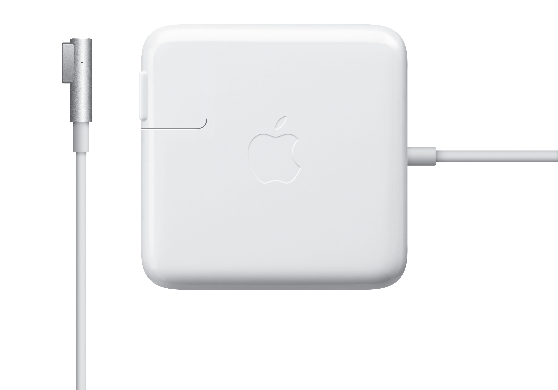
Reminder: Apple is replacing, at no cost, old MagSafe power adapters with frayed wiring or similar problems, as part of a lawsuit settlement. Just take your old faulty adapter to an Apple Genius appointment to see if it qualifies.
Mouse – Apple Magic Mouse
My favorite mouse of all time is now called the Apple Mouse, with the rubber roller ball on top. Once sold in a Bluetooth model, it now is only available with a tail.

That roller ball is also a button, and I always set that button to switch apps, the same as pressing Command+Tab. I found that extremely useful and intuitive to use as I tend to spend my working hours switching back-and-forth between programming tools, documentation in PDF readers (Apple Preview or Adobe Reader), documentation in web pages, and email. This feature in unfortunately missing in Apple's newer touch-surface mouse.

Bluetooth users beware: Some Bluetooth mice have no power On/Off switch, or have a difficult switch. For stowage in a backpack, you really want a good switch to prevent the battery from being drained.
Tip: For stowing in my backpack, I use the original plastic jewel box in which the mouse arrived. I kept the plastic tray inside, to hold the mouse. The box is surprisingly strong. Using the box keeps the mouse protected, and prevents the battery-draining power switch from sliding to the On position.
Another tip: Get a flat-surface teflon-style mouse pad. When out and about, you may encounter surfaces unfriendly to your mouse. Also, stash one or two of those alcohol swipes that come in a foil packet to clean away mouse gudgies.
Keyboard - Microsoft Bluetooth Mobile Keyboard 5000
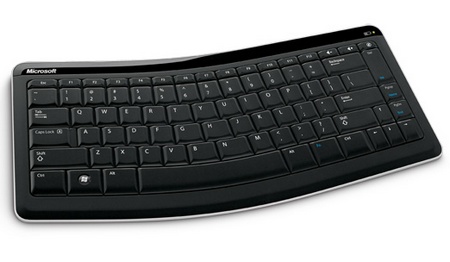
Unfortunately, Bluetooth and ergonomic seem to be mutually exclusive terms. I’ve found no other options but this one. Fortunately this Microsoft keyboard works well enough with Mac computers. It has Windows-logo and Alt keys rather than Command and Option keys, but you can either get used to them, or change their meaning on your Mac in the System Preferences > Mouse panel. You can even slap on a piece of colored electrical tape to cover up that Windows logo.
Actually, I bought the "6000" version of this keyboard. My model cost more than twice the 5000 price and came with a separate Bluetooth keypad which I never used and gave away. From what I've read, the 5000 is basically the same as the 6000 and I presume it will work well fellow Mac users.
Backpack - Brenthaven Expandable Trek Backpack for MacBook
Seattle is riddled with car prowlers as the Seattle Police Department chooses to blame the victim rather than bust criminals like other cities do. So I need to keep my gear with me rather than ever leaving it in my vehicle.

2012-05-24
Minimal HTML5 Document
Here is the best page I've yet to find summarizing the minimum you need when starting a new HTML5 page. Concise and correct. 'Correct' is important -- there is much misinformation floating around about basic requirements of HTML5 and about good practice of fall-back compatibility with lame browsers.
2012-04-27
Oracle announced the official release of the JDK for Java SE 7 Update 4 on Mac OS X (Lion), as of 2012-04-26. No more need for the tricks discussed on this page.
Installation is simple per these instructions:
- Download from the usual place on the Oracle web site.
- Mount the DMG.
- Run the installer.
This release has a few limitations, most notably the lack of support for Web Start and the Java Plugin for web browsers. That support is expected later this year.
After installing, read the JDK for Mac ReadMe. Most importantly, if you want Java 7 to be the default, drag it to the top of the list in the Java Preferences app found in your Utilities folder.
Mac OS X easily supports multiple JVMs simultaneously. Each is now found here:
/Library/Java/JavaVirtualMachines
This geek gets a thrill seeing Mac OS X listed as a "Certified System Configuration".
By the way, Apple provides a mailing list for developers’ technical issues related to Java on OS X.
2012-04-07
No need to adjust memory configuration when installing Postgres on Mac
EnterpriseDB.com is kind enough to provide the Mac OS X installer for Postgres. Using that installer is even easier that it seems.
The last few versions such as 9.1 come bundled with a ReadMe that is misleading. The ReadMe states that you need to adjust your shared memory configuration. Actually, the installer does this for you.
[1] Download and run the installer.
[2] Read the following message displayed by the installer.
 [3] Restart your Mac.
The installer installs some script to automatically launch the Postgres engine when your Mac starts.
[4] Run the installer again to complete the installation process.
I am recording here the last last sentence in that message, for future reference:
The last few versions such as 9.1 come bundled with a ReadMe that is misleading. The ReadMe states that you need to adjust your shared memory configuration. Actually, the installer does this for you.
[1] Download and run the installer.
[2] Read the following message displayed by the installer.

The installer installs some script to automatically launch the Postgres engine when your Mac starts.
[4] Run the installer again to complete the installation process.
I am recording here the last last sentence in that message, for future reference:
If you wish to restore the default [memory configuration] settings in the future, simply delete the /etc/sysctl.conf and reboot.
Subscribe to:
Posts (Atom)